Monday, 3 September 2012

Pros & Cons of Watir, Selenium or Sahi tools


Watir

Pros:
  • It’s a Ruby library
  • Multi browser (& OS) support
  • Has a rich API
  • Has a ‘Simple’ class (for non-tech users)
  • Watij & Watin (Java & .NET)
  • gives more stable and straightforward feeling
  • automatically waits for the page to finish loading
  • can detect when it's finished loading
  • Watir's API more. It's richer than Selenium's
  • provides an "attach" method which lets me programmatic access both
    the original domain window and the linked domain window from the same test.
Cons:
  • Have to learn Ruby (unless you choose
    Watij or Watin)
  • Every browser requires a different
    library

Selenium

Pros:
  • Multi browser, OS & language support
  • Install server-side or as FF add-on
  • Has its own IDE, which speed up development
  • Record and playback tests
  • selenium rc + selenium ide (firefox plugin) for recording and playback of test case is great for generating test case on the fly
  • Choice of programming language
  • using JAVA through CruiseControl, make it easy to conver the selenium test code to JAVA
Cons:
  • Have to learn a vendorscript => Selenese (Unless you write tests
    in another language which it supports. Then you just have to use the API
    reference which is straightforward.)
  • has a lot of timing problems
  • have to use the pause command (or Thread.sleep() if you use it in Java to wait for the loading to complete
  • with Selenium is that it is very difficult to test complex multi-site apps
  • clickAndWait is not helping when working with Ajax technology
  • runs fine in firefox but had different problem on PC with IE6 and IE7
  • learning curve is on the higher side
  • IDE is nothing but a FireFox plugin...and it works only on FireFox
  • record and play back only on FireFox and only if you install the plugin
  • automation engineer needs to have reasonable experience on the chosen language
  • need to implement most of the things including logging mechanisms
  • Extensible Javascript APIs need a rebuild
  • Selenium needed a lot of hand holding
  • selenium doesn't support IE
Remarks:
  • use clickAndWait to wait for the page to load
  • using Java language
  • Selenium 1.0 uses Javascript
  • can use Python to run IE7 with Selenium Webdriver.

Sahi

Pros:
  • Multi browser support
  • Has its own IDE
  • Record and playback tests
  • Data-driven test via jdbc:odbc bridge (this allows to exploits data
    file as xls, mdb, csv, and .. every supportend jdbc:odbc driver)
  • active community (fast replies to bugs/problem/suggestions)
  • test success/failure reporting in html files
  • capabilities to run test using batch file or ant script
  • lightweight and not stress too much the host server.
  • install once and use anywhere
  • After Sahi server is running, tester can access Sahi Controller (aka IDE) from any supported browsers, no need for local installation
  • including a script recorder, object inspector, log broser, debugger, utility to test code without recording
  • Easy to learn, simple, powerful APIs
  • Built-in color coded HTML logs
  • Extensible Javascript APIs
  • Extensible on the server with Java
  • Parallel execution of tests
  • Multiple domain scripting
  • its not using x path
  • supported IE
Cons:
  • Confusing interface
  • Least developed/smallest community
  • documentation needs to be enhanced 
  • need to be improved reporting
  • needs more visibility on the web
  • controller can be a bit quirky need some learning curve
Remarks:
  • Javascript as the scripting language
  • similar in concept to Selenium

Thursday, 12 July 2012

What Is Windows RT and What Does It Mean To Me?

HTG Explains: What Is Windows RT and What Does It Mean To Me?

windows pc and windows phone
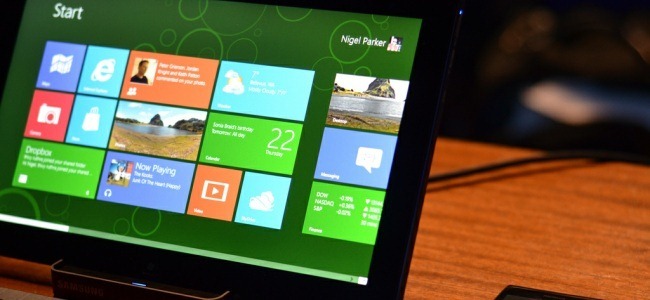
Windows RT is a special edition of Windows 8. It runs on ARM and you’ll find it alongside Intel x86 machines in stores, but you’ll be surprised just how much Windows RT differs from the Windows you know.
Windows RT is so different  that Microsoft has told Mozilla Windows RT “isn’t Windows anymore.” If you’re looking to buy a Windows system in stores, you should know the difference between Windows RT and the other editions of Windows 8.
Image Credit: Kiwi Flickr

ARM vs. x86

Windows RT was known in development as Windows on ARM, or WOA. It’s essentially a port of Windows from Intel x86 processors to ARM processors. x86 processors are what you’ll find in standard laptops and desktops today, while the vast majority of smartphones and tablets use ARM processors.
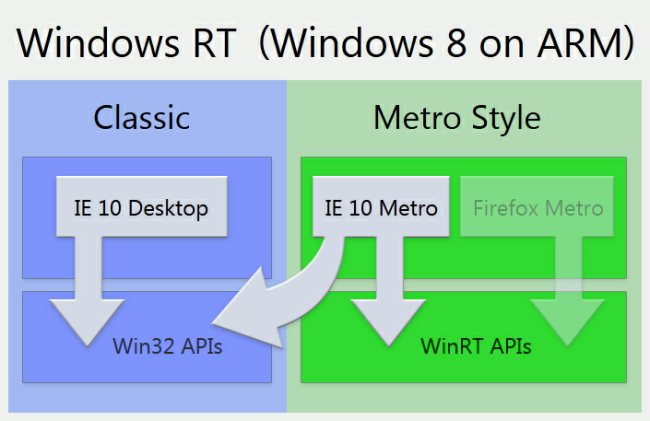
Because it’s a port of Windows to a different architecture, it doesn’t support legacy software – that is, all software written for Windows already. It’s known as Windows RT because it only supports applications written for Windows Runtime or WinRT (yes, “WinRT” refers to the runtime that works on both architectures, while “Windows RT” refers to the operating system that only works on ARM). You probably know Windows Runtime applications as “Metro apps.”

Image Credit: Robert Scoble on Flickr

It Has A Desktop, But…

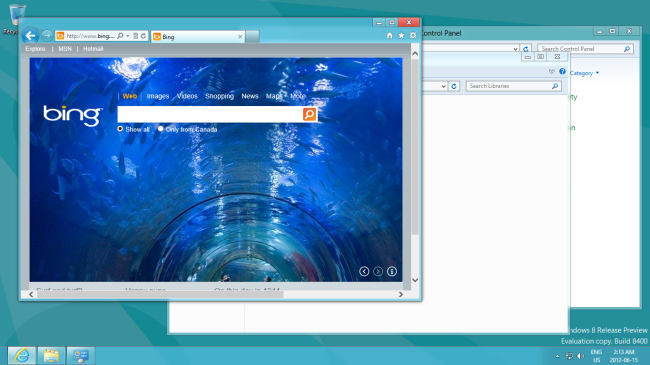
Windows RT does have a desktop, just like other editions of Windows 8. You can launch the desktop and use Microsoft desktop applications like the Control Panel, Windows Explorer, Internet Explorer, and even Microsoft Office – in fact, each Windows RT system comes with touch-optimized versions of Microsoft Office apps on the desktop. Windows Media Player isn’t included, though.
However, you can’t run non-Microsoft applications on a Windows RT desktop. You might assume that this is because desktop applications just haven’t been compiled for the ARM architecture yet and developers just need to update them. This would be true, but Microsoft won’t allow third-party applications on the Windows RT desktop. In other words: The Windows RT desktop is locked-down and only for Microsoft applications. You can’t install non-Microsoft desktop applications.

Third-Party Application Restrictions

All third-party applications on Windows RT must be Metro applications, and Metro applications must go through the Windows Store and be approved by Microsoft. This means that a Windows RT device can only run Microsoft-approved applications, just like an iPad can only run Apple-approved applications.
This has implications for browser choice, too. On a Windows RT device, the Metro version of Internet Explorer has exclusive access to system APIs, which means Mozilla, Google, and others can’t develop their own browsers for Windows RT – both Mozilla and Google have raised concerns about this. If you use a Windows RT device, you’ll be using Internet Explorer – just like if you use an iPad, you’ll be using Safari. All third-party browsers for the iPad are shells around Safari, just like all third-party browsers for Windows RT will be shells around Internet Explorer.

Image Credit: Asa Dotzler on Flickr

Windows RT Is For “Devices”

Windows RT is clearly inspired by the iPad and it’s no coincidence that its restrictions mirror Apple’s. Microsoft envisions Windows RT computers as “devices,” not traditional PCs. You won’t be able to buy a boxed copy of Windows RT in stores – it’s only available pre-installed on ARM systems. Initially, these ARM systems will be a handful of Windows tablets, but there’s nothing stopping Windows RT from eventually running on laptop and even desktop computers with ARM chipsets.
Windows RT devices will be locked down in other ways, too. Microsoft mandates that Secure Boot on Windows RT devices isn’t user-configurable, so you won’t be able to remove Windows RT and install Linux or another operating system.

Image Credit: Kiwi Flickr

Missing Enterprise Features

Windows RT also lacks many enterprise features that have made Windows so successful. Windows RT devices can’t join an Active Directory or domain and don’t support group policy, so they can’t be easily managed by existing Windows infrastructure.
Windows RT also lacks a variety of other features, including Storage Spaces, BitLocker, remote-desktop hosting, and encrypted file systems. For a full list of limitations, check out Microsoft’s post announcing the Windows 8 editions.

Not All Windows Tablets Run Windows RT

Many Windows tablets – in fact, most of the tablets you’ll see in stores when Windows 8 debuts – won’t run Windows RT. They’ll be using a standard x86 Intel processor with one of the standard versions of Windows 8. That means they’ll support third-party desktop software and all standard Windows features.
If you’re interested in a Windows 8 tablet because of support for legacy desktop software, be sure to get an x86 tablet, not an ARM one. If you’re looking for enterprise features, you’ll probably want to stay away from Windows RT, too.

Current rumors indicate that each copy of Windows RT will likely cost manufacturers around $85, making Windows RT more expensive than other Windows 8 versions – and likely making Windows RT tablets more expensive than iPads. Windows RT tablets could even be more expensive than more full-featured Windows 8 x86 tablets.

Source: http://www.howtogeek.com/116637/htg-explains-what-is-windows-rt-what-does-it-mean-to-me/

Thank you.

Saturday, 31 December 2011

LG To Debut Second Intel-Powered Smartphone At CES 2012


“If at first you don’t succeed, try try again.” It looks like LG and Intel have taken that old adage to heart, if a new report is to be believed. The Korea Times reports that LG will debut an Intel-powered smartphone at CES 2012, but the bigger question is whether or not the device will ever make it to market.

LG and Intel’s first mobile partnership yielded an Android smartphone running on Intel’s Moorestown chipset for CES 2011, but the device was ultimately scrapped. The reason for its premature demise? As the story goes, the device died because of it’s “lack of marketability.”

LG’s brass certainly thinks their Intel smartphone is viable — according to one of the Times’ executive sources, the device could be released as soon this March. Still, the original LG-Intel phone was pegged with a 2011 release date, so take those claims with a grain of salt for bow.

Hopefully LG’s second swing at an Intel-powered phone fares a little better — it’s said to run on Intel’s next-generation Medfield system-on-a-chip, and early tests have yielded some pretty impressive benchmarks when compared to NVIDIA’s Tegra 2 and Qualcomm’s Snapdragon MSM8260 SoCs.

Of course, the real competition is yet to come, as nearly every player in the mobile chipset market is hard at work on their next-generation platforms. Intel has a lot of brand recognition when it comes to PCs, but their lack of presence in the mobile market to date could mean that Medfield could drown in a sea of established ARM-based chipsets.

That’s why the partnership with LG is so critical — despite their handset division spending a few quarters in the red, LG is still the number two handset OEM in the U.S. Having a major hardware vendor taking a chance on their new platform could establish Intel as a real player in the mobile space, and right now Intel’s mobile efforts could use all the visibility they can get.

Windows Phone 7 will get three LTE phones in 2012

Yesterday we saw an alleged leak of Microsoft’s 2012 Windows Phone roadmap. It offers an eyebrow-raising view of a company that is trying to invade the smartphone market from the bottom up (starting with low-end phones). Today we have a new report that further materializes Microsoft’s near-term plans for Windows Phone 7.

The big news, which will apparently be officially announced at CES, is that there will be several LTE Windows Phone devices in 2012 — and they will all be on AT&T. The three phones — the Nokia ACE, HTC Radiant, and Samsung Mendel — will ship by the middle of the year. The ACE, specifically, is set to launch on March 18.

The LTE phones will probably all run Windows Phone 7.5 Mango, as the previous roadmap leak points to the Tango update, which is aimed towards low-end phones, coming earlier in the year. The Apollo update, which will support high-end handsets, won’t show until the fourth quarter of 2012.

A final detail of the new leak has Nokia’s Lumia 710 launching on T-Mobile on January 11, and on Verizon in April. The Lumia 710 will launch in the US before the Lumia 800, making Americans’ first impressions of the Nokia/Microsoft alliance that of a mid-range phone that doesn’t dazzle like the Lumia 800.

While the Microsoft/Nokia bottom-up strategy seems illogical, it could have something to do with the release of Windows 8. Though Windows 8 and Windows Phone 7 are two different operating systems, the Metro UI will bring them together on a cosmetic level. In the eyes of most customers, that may be enough to create a positive association and let Windows Phone ride Windows 8′s (expected) buzz. The strategy could fizzle, but it also may be a smart gamble.

* Note that the above image is a visualization: no Windows Phone marketing materials were part of the leak.

Sunday, 30 October 2011

Getting started with Blackberry development in Eclipse - Links

Links:

http://www.blackberryforums.com/developer-forum/138210-setup-up-eclipse-blackberry-development.html

http://thinkingblackberry.com/?p=21

http://epicapplications.com/blog/2009/10/getting-started-with-blackberry-development-part-1/

Getting started with Blackberry Development in Eclipse

Setting up your development tools for BlackBerry Java applications

If you’re developing Java® applications for the BlackBerry® device, there are a number of tools you can use to develop your application. In this article, we will focus on setting up the BlackBerry® Java® Plug-in for Eclipse®.

The BlackBerry Java Plug-in for Eclipse extends the Eclipse® development framework to allow you to develop a BlackBerry Java application for the BlackBerry device. In Eclipse and Eclipse-based IDEs, the plug-in provides the tools to develop, debug, optimize, and localize your application.

System requirements

Before downloading the BlackBerry Java Plug-in for Eclipse, make sure your computer meets the following system requirements:

Intel® Pentium® 4 or AMD Athlon™ Desktop Processor 2.5GHz or faster
1.5 GB or more available hard disk space
2 GB RAM or more
Monitor with 1024 x 768 resolution or higher
Windows Vista®, Windows® XP, or Windows® 7 (Note: 64-bit versions require 32-bit Java® and 32-bit Eclipse).
Java® Platform, Standard Edition (Java SE) Development Kit (JDK) 6, update 14 or later

Task 1: Downloading and installing the Java SE JDK

Note: If you already have Java SE JDK 6 update 14 or later installed on your computer, you can proceed to the next task.

Go to www.oracle.com/technetwork/java/javase/downloads/index.html .
Click Download JDK.
From the Platform drop-down list, select the platform you are developing on.
After reviewing the license agreement, select the license checkbox. Click Continue.
Click the filename and save the file to a location on your computer.
Double-click the exe file and proceed with the installation.
Update the PATH environment variable to point to the newly installed JDK by completing the following steps:
From the Control Panel, select System.
On the Advanced tab, click Environment Variables.
Under System variables, select the Path variable and click Edit.
At the beginning of the Variable value field, type the path of the JDK followed by a semicolon ; For example, C:\Program Files\Java\jdk1.6.0_21\bin;
Click OK to save and close the Environment Variables window.
In the Environment Variables, update the JAVA_HOME variable to point to the newly installed JDK. Use the instructions in the prior step to update the JAVA_HOME variable.

Task 2: Downloading and installing the BlackBerry Java Plug-in and the Eclipse IDE

Note: If you have a registered account on the BlackBerry® Developer Zone, please log in. By using your registered account, you avoid having to complete download agreements for each time you download a file. You can log in or register for an account at www.blackberry.com/developers.

Go to www.blackberry.com/developers/java.
Click the Development tools and downloads link.
Click the Download the BlackBerry Java Plug-in for Eclipse v1.3 (full installer) link. This installer includes both the BlackBerry Java Plug-in-in for Eclipse and Eclipse 3.6.
Click Download.
Click Save, and then save the file to a location on your computer.
Double-click the setup application file.
Click Run.
On the Introduction screen, click Next.
Review the license agreement, and then select I accept the terms of the License Agreement.
Click Next.
Choose a location where you would like to install Eclipse. You can use the default location that’s specified on the screen or you specify a different folder location. Note: The folder must be empty.
Click Next.
On the Select Additional Tasks screen, select where you want the setup application to create shortcuts for the BlackBerry Java Plug-in.
Click Next.
Review the information on the Pre-installation Summary screen, and then click Install.
Click Done.

You have successfully completed the installation of the BlackBerry Java Plug-in for Eclipse and the Eclipse installation.

When you first launch the BlackBerry Java Plug-in for Eclipse, Eclipse will prompt you to specify a workspace. This workspace contains all the application projects you plan to work on.